To ensure that no important data is lost, it is important to make regular backups of your server. Backups reflect the complete state of your server at a specific point in time and can be restored at any time.
The number of available backup points depends on the package you have booked.
How do I create a backup?
Follow these steps to create a full backup:
For maximum performance and compatibility, we recommend installing the qemu-guest-agent package.
It is pre-installed in all of our operating systems by default.
- Open your server in the customer portal.
- Click on Backups in the navigation bar.
- You will now see an overview of your existing backups. Click on + Create Backup.
- Here you can specify additional options for your new backup. The recommended settings are already preselected. Give your backup a memorable name and activate delete protection if necessary.
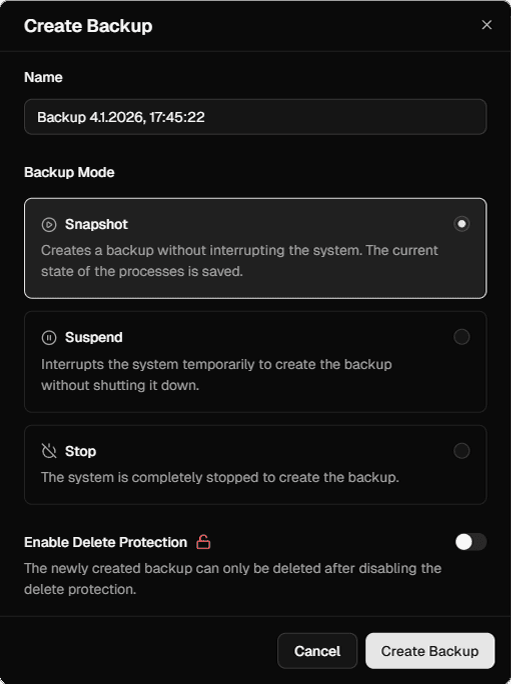
- Click on Create Backup to start the process.
Your backup is now being created. The duration varies depending on the storage space you have booked and the performance of your server. It should not take longer than 5 minutes.
Only one backup process can be started at a time.
You can track the current status of the backup in the list of backups.
If you have any further questions about the backup process or need assistance, please contact our support team.
What do the backup options mean?
Name: This is the name of your backup. It is displayed in the list of created backups and is used for organizational purposes. You can choose any name you like, such as “Before upgrade,” “New operating system,” or “State at XXXX\XX\XX”
Backup mode: Determine how the backup is created. The mode you select affects the speed of the backup and the state that is backed up.
- Snapshot: The server is backed up during operation. As a result, all active processes and their status are also backed up. When the backup is restored, the processes are in the same state as before.
- Suspend: The server is temporarily “frozen”. All processes are paused and the backup is created. This mode ensures that active processes do not make any further changes to the server. Your server cannot start any new processes during the backup.
- Stop: The server is completely shut down before the backup process starts. The server is then backed up in the shut-down state. The server cannot be started during the backup.
In most cases, using Snapshot mode is sufficient. If you want to be on the safe side, you can use one of the other two modes.
Deletion protection: Increase the security of your backup by activating deletion protection. Active deletion protection prevents accidental deletion of the backup. You must then first deactivate deletion protection on the finished backup in order to delete it.
When should I make a backup?
There is no exact rule for when you should make a backup. It is your responsibility to back up your data regularly.
However, we recommend creating a backup in the following situations:
- You have reinstalled your server's operating system or want to do so
- You want to install new, untested software on your server
- You are updating your server's operating system to a newer version
- You want to make major changes to your server's configuration
If an error occurs during these events, the backup ensures that you can immediately undo the changes.
Are backups deleted when changing the operating system?
No, your backups are retained until you delete them manually. They are also retained when changing the operating system, so that you can switch back to the previous operating system.
Our system only deletes backups if your server has not been renewed after the term has expired. In this case, we will inform you several days in advance before a backup is deleted.
How do I download my backup?
For security reasons, it is currently not possible to download a backup directly from the customer portal.
If you need a copy of your backup in the form of a downloadable file, please contact our support team.